digiKam is an advanced digital photo management application for Linux, Windows, and Mac-OSX.
The people who inspired digiKam's design are the photographers like you who want to view, manage, edit, enhance, organize, tag, and share photographs under Linux systems.
Tuesday, December 14, 2010
Friday, October 15, 2010
Tiny Core Linux 3.2 released
Tiny Core Linux is a very small (10 MB) minimal Linux GUI Desktop. It is based on Linux 2.6 kernel, Busybox, Tiny X, and Fltk. The core runs entirely in ram and boots very quickly. Also offered is Micro Core a 6 MB image that is the console based engine of Tiny Core. CLI versions of Tiny Core's program allows the same functionality of Tiny Core's extensions only starting with a console based system.
It is not a complete desktop nor is all hardware completely supported. It represents only the core needed to boot into a very minimal X desktop typically with wired internet access.
The user has complete control over which applications and/or additional hardware to have supported, be it for a desktop, a netbook, an appliance, or server, selectable by the user by installing additional applications from online repositories, or easily compiling most anything you desire using tools provided.
Thursday, October 07, 2010
Qt SDK 2010.05.1 for Linux released
After the 2010.05 release of the Qt SDK, which accompanied Qt 4.7.0, we got word that Creator and the apps created with the packaged Qt would not look native on Gnome. This was caused by a missing GTK style plugin, which caused Qt to fall back to the non-native CleanLooks style.
The now released 2010.05.1 packages address this specific issue. Qt SDK 2010.05.1 is thus only available for x86 (32-bit) and x86_64 (64-bit) Linux environments.
Source: Qt Labs - Developer Blogs: Qt SDK 2010.05.1 for Linux released
Friday, September 10, 2010
Convert MP4 to FLV on ubuntu
In Ubuntu, start Synaptic Package Manager, search the following two packages, and mark for installation.
ffmpeg
This package contains the ffplay multimedia player, the ffserver streaming
server and the ffmpeg audio and video encoder. They support most existing
file formats (AVI, MPEG, OGG, Matroska, ASF...) and encoding formats (MPEG,
DivX, MPEG4, AC3, DV...).
avidemux
Avidemux is a free video editor designed for simple cutting, filtering and
encoding tasks. It supports many file types, including AVI, DVD compatible
MPEG files, MP4 and ASF, using a variety of codecs. Tasks can be automated
using projects, job queue and powerful scripting capabilities.
ffmpeg
This package contains the ffplay multimedia player, the ffserver streaming
server and the ffmpeg audio and video encoder. They support most existing
file formats (AVI, MPEG, OGG, Matroska, ASF...) and encoding formats (MPEG,
DivX, MPEG4, AC3, DV...).
avidemux
Avidemux is a free video editor designed for simple cutting, filtering and
encoding tasks. It supports many file types, including AVI, DVD compatible
MPEG files, MP4 and ASF, using a variety of codecs. Tasks can be automated
using projects, job queue and powerful scripting capabilities.
Friday, August 06, 2010
How to check MAC address on Ubuntu
Start a Terminal, type the command:
You will see your MAC address in HWaddr of your device.

$/sbin/ifconfig
You will see your MAC address in HWaddr of your device.

Thursday, June 17, 2010
Install c++ in ubuntu using Synaptic Package Manager
To install c++ in ubuntu, start Synaptic Package Manager from System of Ubuntu menu -> Administration
search g++ (GNC c++ compiler) and right click to mark for installation, and then mark additional required changes.

Click Apply
search g++ (GNC c++ compiler) and right click to mark for installation, and then mark additional required changes.

Click Apply
Wednesday, June 02, 2010
Install Sun JDK(JRE) on Fedora 13
Install Sun JDK(JRE) on Fedora 13
The steps below installs the Java SE Runtime Environment using an RPM binary bundle, on a 32-bit Linux as a example (include the newest Fedora 13).
Download JDK(JRE) RPM Linux from Sun's download page(http://java.sun.com/javase/downloads/index.jsp), to any directory that you want. For myself.
Start a Terminal (Fedora's Top Menu -> Applications -> System Tools -> Terminal) and switch to the downloaded folder.
Swith to SU
$su
and also enter the password.
set the executable permissions of the downloaded file.
$chmod a+x jdk-6u20-linux-i586-rpm.bin
execute the file.
$./jdk-6u20-linux-i586-rpm.bin
Accept the terms.
Finished!
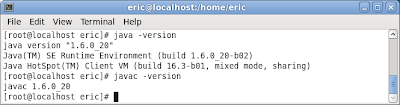
The downloaded RPM file can be deleted after installation.
The steps below installs the Java SE Runtime Environment using an RPM binary bundle, on a 32-bit Linux as a example (include the newest Fedora 13).
Download JDK(JRE) RPM Linux from Sun's download page(http://java.sun.com/javase/downloads/index.jsp), to any directory that you want. For myself.
Start a Terminal (Fedora's Top Menu -> Applications -> System Tools -> Terminal) and switch to the downloaded folder.
Swith to SU
$su
and also enter the password.
set the executable permissions of the downloaded file.
$chmod a+x jdk-6u20-linux-i586-rpm.bin
execute the file.
$./jdk-6u20-linux-i586-rpm.bin
Accept the terms.
Finished!

The downloaded RPM file can be deleted after installation.
Wednesday, May 26, 2010
Google Chrome for Linux Stable version is available now!

Google Chrome for Linux Stable version is available now. In Ubuntu, it can be installed using Synaptic Package Manager.
To install Google Chrome for Linux Stable version on Ubuntu:
Click System -> Administration -> Synaptic Package Manager
Type Chrome in the search box
Mark google-chrome-beta for Removal if it was installed
Mark google-chrome-stable for Installation
Click Apply!

Sunday, May 09, 2010
Install sun-java6-jdk/sun-java6-jre on Ubuntu 10.04 LTS, using apt-get
In the new announced Ubuntu 10.04 LTS, the sun-java6-jdk packages have been removed from the Multiverse section of the Ubuntu archive. So you cannot install it using the command sudo apt-get install sun-java6-jdk directly!!!
To install sun-java6-jdk on Ubuntu 10.04 LTS, type the commands below in Terminal:
sudo add-apt-repository "deb http://archive.canonical.com/ lucid partner"
sudo apt-get update
sudo apt-get install sun-java6-jdk
or
sudo apt-get install sun-java6-jre
To install sun-java6-jdk on Ubuntu 10.04 LTS, type the commands below in Terminal:
sudo add-apt-repository "deb http://archive.canonical.com/ lucid partner"
sudo apt-get update
sudo apt-get install sun-java6-jdk
or
sudo apt-get install sun-java6-jre
Saturday, May 08, 2010
How to Hide/Display icon on Ubuntu desktop, using gconf-editor.
How to Hide/Display icon on desktop, gconf-editor.
Refer to the article "How to Restore KDE's Default Settings", many icons of the folder/files inside my desktop folder come-out on Desktop. I prefer a clean desktop without it.
To hide icon of desktop, gconf-editor can be used.
- Press ALT-F2 to call out Run Application Dialog, type gconf-editor in the Edit Text Box and click Run.
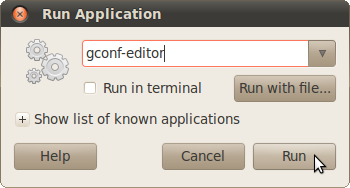
- Browse to /apps/nautilus/preferences/, un-check the value box of show_desktop
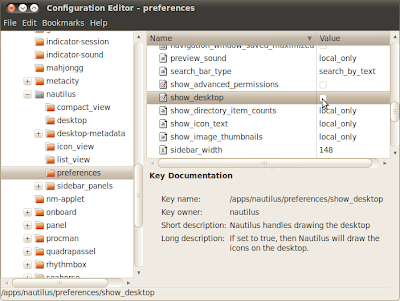
The icons gone now :)
Refer to the article "How to Restore KDE's Default Settings", many icons of the folder/files inside my desktop folder come-out on Desktop. I prefer a clean desktop without it.
To hide icon of desktop, gconf-editor can be used.
- Press ALT-F2 to call out Run Application Dialog, type gconf-editor in the Edit Text Box and click Run.

- Browse to /apps/nautilus/preferences/, un-check the value box of show_desktop

The icons gone now :)
Friday, May 07, 2010
How to Restore KDE's Default Settings
Restoring KDE's default setting can be done by deleting the following directories:
kde*
.skel
*Desktop
Please notee that all program settings will be reset to default. Therefore, all setting changed , include address books and e-mail settings, will be lost.
Enter the command in Terminal:
rm -rf .kde*/ .skel/ *Desktop/
Related article: How to Hide/Display icon on desktop, gconf-editor.
kde*
.skel
*Desktop
Please notee that all program settings will be reset to default. Therefore, all setting changed , include address books and e-mail settings, will be lost.
Enter the command in Terminal:
rm -rf .kde*/ .skel/ *Desktop/
Related article: How to Hide/Display icon on desktop, gconf-editor.
Tuesday, May 04, 2010
How to login as root in Ubuntu?
Normally, user cannot login as root in the login screen, because there are no password for root user in default. In order to login as root, a password for root user have to be set manually.
To set password for root user?
Start a Terminal and type the command:
sudo passwd
You will be as to type in the new root password twice. After that, re-login as root with the new password in login screen.
To set password for root user?
Start a Terminal and type the command:
sudo passwd
You will be as to type in the new root password twice. After that, re-login as root with the new password in login screen.
Saturday, May 01, 2010
Ubuntu 10.04 LTS
What is Ubuntu?
Ubuntu is an operating system built by a worldwide team of expert developers. It contains all the applications you need: a web browser, office suite, media apps, instant messaging and much more.
Ubuntu is an open-source alternative to Windows and Office.
The Ubuntu promise
* Ubuntu will always be free of charge, along with its regular enterprise releases and security updates
* Ubuntu comes with full commercial support from Canonical and hundreds of companies from across the world
* Ubuntu provides the best translations and accessibility features that the free software community has to offer
* Ubuntu core applications are all free and open source. We want you to use free and open source software, improve it and pass it on.
Ubuntu is an operating system built by a worldwide team of expert developers. It contains all the applications you need: a web browser, office suite, media apps, instant messaging and much more.
Ubuntu is an open-source alternative to Windows and Office.
The Ubuntu promise
* Ubuntu will always be free of charge, along with its regular enterprise releases and security updates
* Ubuntu comes with full commercial support from Canonical and hundreds of companies from across the world
* Ubuntu provides the best translations and accessibility features that the free software community has to offer
* Ubuntu core applications are all free and open source. We want you to use free and open source software, improve it and pass it on.
Saturday, January 02, 2010
How to mount ISO in ubuntu
Gmount-iso (gmountiso) is a small tool written using PyGTK and Glade. It allows you to easily mount your cd images. This is a frontend to the 'mount -o loop -t iso9660 foo.iso /mountpoint' command
Install gmountiso:
Start Synaptic Package Manager from Administration on top menu of ubuntu, type gmountiso in the Quich Search box. Right click on gmountiso and mark it to install. And then click Apply.
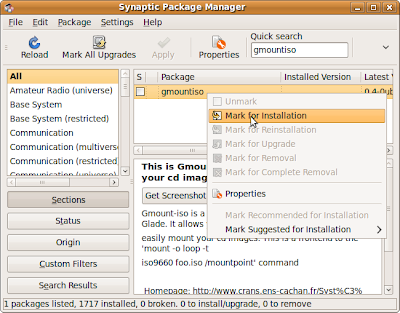
Create a mount point:
In order to mount a ISO, you have to creat a mount point somewhere, just create a folder on your desktop is OK.
Start gmountiso from ubuntu top menu:
Applications > System Tools > Gmount-iso
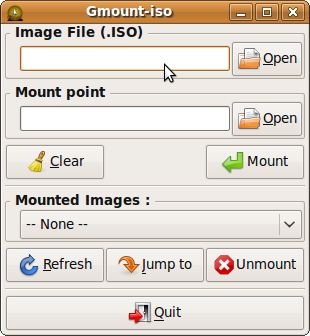
Just click Open to select Image File (.iso), and Mount Point, and then click the button mount.
Install gmountiso:
Start Synaptic Package Manager from Administration on top menu of ubuntu, type gmountiso in the Quich Search box. Right click on gmountiso and mark it to install. And then click Apply.

Create a mount point:
In order to mount a ISO, you have to creat a mount point somewhere, just create a folder on your desktop is OK.
Start gmountiso from ubuntu top menu:
Applications > System Tools > Gmount-iso

Just click Open to select Image File (.iso), and Mount Point, and then click the button mount.

Sunday, December 20, 2009
How to share files/folders between two computers running ubuntu? OpenSSH!
To share files/folder between two computers running ubuntu, OpenSSH is a easy way to do it.
To install OpenSSH client and server on both computer:
Start Synaptic Package Manager from Administration from top menu of ubuntu, type ssh in the Quich Search box, scroll down to find the package ssh. Right click on ssh and mark it to install. You will be prompted to mark the other required packages also. Go ahead to install it.
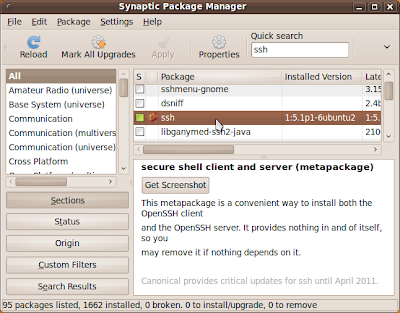
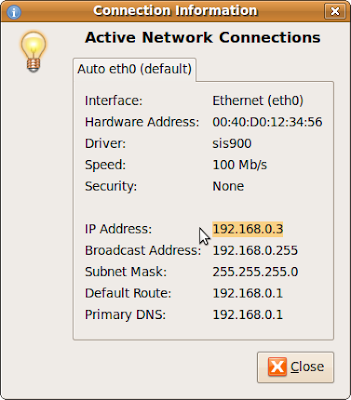
You have to check the ip address of the computer in the server side.
Right click the NetworkManager Applet on the menu bar on top of ubuntu, select Connection Information.
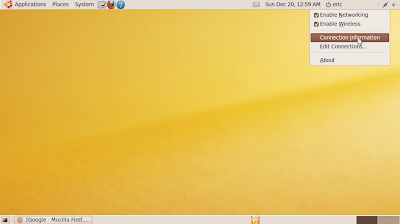
Mark down the ip address, it's 192.168.0.3 in my case.
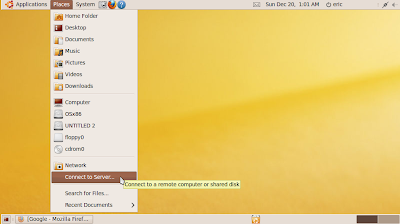
In the client side, click on Place on top menu of ubuntu, select Connect to Server...
Enter the information:
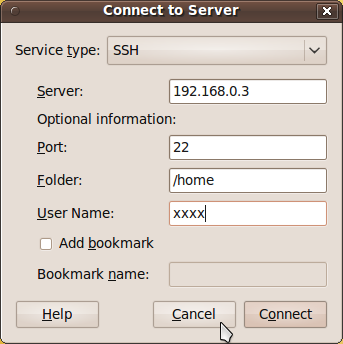
Service type: SSH
Server: the ip address of your server.
Port: 22
Folder: the folder you want to log-in.
User Name: name of the user in the server.
Click Connect
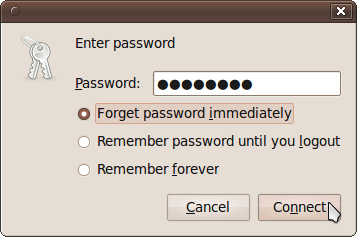
You will be prompted to enter the password of the user in the server. Enter and click Connect.
After a moment, you can access the server computer using OpenSSH.
To install OpenSSH client and server on both computer:
Start Synaptic Package Manager from Administration from top menu of ubuntu, type ssh in the Quich Search box, scroll down to find the package ssh. Right click on ssh and mark it to install. You will be prompted to mark the other required packages also. Go ahead to install it.

You have to check the ip address of the computer in the server side.
Right click the NetworkManager Applet on the menu bar on top of ubuntu, select Connection Information.

Mark down the ip address, it's 192.168.0.3 in my case.

In the client side, click on Place on top menu of ubuntu, select Connect to Server...

Enter the information:

Service type: SSH
Server: the ip address of your server.
Port: 22
Folder: the folder you want to log-in.
User Name: name of the user in the server.
Click Connect
You will be prompted to enter the password of the user in the server. Enter and click Connect.

After a moment, you can access the server computer using OpenSSH.
Thursday, November 12, 2009
Moblin 2.1 Netbooks and Nettops Project Release
This is latest official project release of Moblin for Netbook and Nettops. Additional releases are available to keep you updated on the latest Moblin development. Released November 04, 2009.
moblin.org
moblin.org
Moblin v2.1 Feature Summary
In addition to the various new features, this new version of Moblin includes several hundred bug fixes and incorporates feedback from users and the developer community. Much polish and performance improvement was accomplished within this release from the Moblin developers. New features in Moblin v2.1 for netbooks and nettops include:
- Internet Browser. After much work, we are including a new internet browser application that far exceeds our previous browser performance and adds full support for features such as plug-in support and add-ons. Many thanks to Moblin users and the developer community for their feedback and contributions.
- 3G Data Support. Support for 3G data connections using the Ericsson* MBM 3G modems. Support for additional 3G modems is planned for future releases.
- Application Installer Integration. The Moblin Application Installer is integrated and provides a logically categorized list of applications that you can choose to install. The selection of applications that appears within the Moblin Application Installer comes from the Moblin Garage.
- Clutter 1.0. With this new version of Moblin, we are releasing Clutter 1.0, the Moblin animation framework.
- Bluetooth* Device Support. Bluetooth* device discovery and pairing now supported via a new panel in the toolbar, which supports Bluetooth* audio devices, input devices (keyboards, mice), OBEX file transfer, and using a Bluetooth* phone as a 3G modem.
- Connection Manager. Connection Manager (ConnMan) has significant modifications particularly in the areas of performance and reliability. The new version of ConnMan now supports Ethernet, WiFi, WiMAX, and 3G.
- Nettop Support. UI scaling is provided for a wide range of nettop resolutions, including the ability to show more information in the Myzone panel based on the available screen space.
- Improvements to Instant Messaging. Improvements have been included for Instant Messaging account setup, integration within the connection manager, and support for transparent connection to your friends on your local network.
- Input Method Support. Input method support is now included across the system.
- Localization. Moblin is currently localized in the following languages (English, Brazilian Portuguese, Spanish, French, German, Swedish, Finnish, Korean, Japanese, Chinese Simplified, Chinese Traditional). We also have a community translation project where Moblin is translated to additional languages by the community.
- In addition, Moblin v2.1 includes several updated versions of key technology components that the Moblin developers worked on with the various communities; these include the Linux kernel version 2.6.31, Intel Linux graphics driver 2.9, X server 1.6.4, and Mesa 7.6. We are also providing updated documentation, sample code and updates to the Moblin SDK. Detailed Moblin UX help documentation is included in multiple languages along with updated Moblin SDK documentation and sample code.
Saturday, October 31, 2009
Ubuntu 3D Desktop Howto
Small tutorial to enabled 3D effects and add a application dock bar in Ubuntu Karmic 9.10.
This video was created in Ubuntu 9.10 Alpha, using a ATI RS480 built-in gfx chipset on old Shuttle ST20G5. It's kind of slow because the recording software brings the framerate to it's knees on this box. Otherwise works fast enough when I'm not recording the desktop at same time.
ATI opensource drivers are much better in this release, but I still have severe crashes once, or twice a day while using the machine.
Basic 3D works ok, but there is still plenty to fix:
- Google Earth still has problems with ATI opensource drivers.
- Xrandr 1.3 can't enable my DVI monitor, if I boot the machine with a VGA monitor pluged in. But if I power of the machine disconnect the VGA cable, start with the DVI monitor and then plug the VGA cable and enable second monitor, it works.
- Dual monitor: If I enable both monitor with 1920x1080 resolutions 3D stops working or refresh becomes very slow, If I reduce the resolution all becomes usable around 1280x1024 on both monitor.
Thursday, October 29, 2009
Ubuntu 9.10 is available
The new Ubuntu 9.10 is available to download here.
What is Ubuntu?
Ubuntu is an operating system built by a worldwide team of expert developers. It contains all the applications you need: a web browser, office suite, media apps, instant messaging and much more.
Ubuntu is an open-source alternative to Windows and Office.
What is Ubuntu?
Ubuntu is an operating system built by a worldwide team of expert developers. It contains all the applications you need: a web browser, office suite, media apps, instant messaging and much more.
Ubuntu is an open-source alternative to Windows and Office.
Tuesday, October 20, 2009
New moblin 2.1 preview Image posted
 A new preview of the Moblin v2.1 image is now available for download and testing. Many new features and bug fixes are available in this image.
Source: New moblin 2.1 preview Image posted | moblin.org
Saturday, October 10, 2009
Ubuntu 9.10 Coming Soon!
Ubuntu 9.10 is coming soon, it will be be released on October 29th, 2009. Or, you can download the Beta now.
Ubuntu web site.
Ubuntu web site.
Subscribe to:
Posts (Atom)


