Showing posts with label installation. Show all posts

Friday, August 06, 2010

How to check MAC address on Ubuntu

Start a Terminal, type the command:

$/sbin/ifconfig


You will see your MAC address in HWaddr of your device.


Thursday, June 17, 2010

Install c++ in ubuntu using Synaptic Package Manager

To install c++ in ubuntu, start Synaptic Package Manager from System of Ubuntu menu -> Administration

search g++ (GNC c++ compiler) and right click to mark for installation, and then mark additional required changes.

Install c++ in ubuntu using Synaptic Package Manager

Click Apply

Tuesday, August 11, 2009

Installing Firefox 3.5 on Ubuntu


Firefox 3.5 is available.

The Check For Updates link in Firefox is disabled in Ubuntu. Firefox should only be updated through the package-management system.

or install it directly:

install the following package: firefox-3.5. Firefox 3.5 will be installed alongside Firefox 3.0.

When you have installed the new package, a new icon will appear in Applications > Internet alongside your old Firefox icon. The name is based on the codename for the new Firefox release, so Firefox 3.5 was labelled Shiretoko Web Browser.

more details: https://help.ubuntu.com/community/FirefoxNewVersion

Friday, July 31, 2009

How to install KDE on ubuntu

The default desktop of Ubuntu is Gnome.If you want KDE, you can install Kubuntu.

Alternatively, you can install Kubuntu on Ubuntu using Synaptic Package Manager.

Click System > Administration > Synaptic Package Manager on Ubuntu menu.


Type Kubuntu inside the Quick search box, mark Kubuntu to install.


You will be asked to mark additional required changes, just mark it.


And click Apply.


Click Apply again to confirm changes.


Wait the package to be downloaded.


You will be asked to select the default display manager, gdm? or kdm? It's the display manager of the login screen , any one is ok.


Wait install and changes applied.


Now, you can restart or log-out and log-in again to switch to KDE.

You can Select KDE Session by clicking Options on the lower-left of login screen.


Now, your system have both Gnome and KDE installed, you can switch between in login screen.

Thursday, July 23, 2009

How to setup cvs server on Ubuntu

Install cvs and cvsd, start Synaptic Package Manager from ubuntu menu bar
System > Administration > Synaptic Package Manager

typ cvs in Quick Search box, select cvs and cvsd, click Apply.

When installing cvsd, you will be asked to enter Repositories to serve, the default setting is /demo:/myrepos, just accept it and click Forward.

After changes applied, you can close Synaptic Package Manager.

Next, open a Terminal.

Type the command to create /myrepos
#cd /var/lib/cvsd
#sudo mkdir myrepos

Initial /myrepos
#sudo cvs -d /var/lib/cvsd/myrepos init

Modify the file /var/lib/cvsd/myrepos/CVSROOT/config
(May be you have to change the permission to writable)

#sudo gedit /var/lib/cvsd/myrepos/CVSROOT/config
Add the line into it:
SystemAuth=no
PamAuth=no
LockDir=/tmp/myrepos

Save and Exit editor

Create LockDir
#sudo mkdir /var/lib/cvsd/tmp/myrepos

Add a user, named cvsuser
#sudo cvsd-passwd /var/lib/cvsd/myrepos cvsuser
You will be ask to input password.

Modify /etc/cvsd/cvsd.conf
#sudo gedit /etc/cvsd/cvsd.conf

Scroll to end of the file, find the text
Listen * 2401
Repos /demo
Repos /myrepos

change to
Listen 127.0.0.1 2401
Repos /demo
Repos /myrepos

where 127.0.0.1 is my local static IP, 2401 is the default port used by cvs.

and then, set the right.
#sudo chown cvsd:cvsd /var/lib/cvsd -R

Restart cvsd
#sudo /etc/init.d/cvsd restart

You can check the cvsd status using the command, and make sure it's running.
#sudo /etc/init.d/cvsd status

Tuesday, November 11, 2008

Display disappear after install new graphics driver!!!

Today, I was prompted by ubuntu 8.10 to install NVIDIA accelerated graphics driver. I accept by pressing Activate to download and install the updated graphics driver and restart. But the display disappear after re-boot. May be my machine is too old and not supported by the new driver!

Here is how I recover to original setting:
- Re-boot the machine, and press 'ESC' to enter menu while GRUB loading.
- Enter Recovery Mode by selecting "Ubuntu 8.10, Kernel 2.6.27-7-generic (recovery mode)"


- Select "xfix Try to fix X sserver" in Recovery Menu.


- After some process, the screen will return to Recovery Menu.


- Now, you can select "resume Resume normal boot". The normal display resumed:)

Tuesday, November 04, 2008

Run Ubuntu Linux 8.04 LTS on 8G CF with CF to IDE Adapter


Compact-Flash(CF) card is a moveable electronic solid-state-disk(SSD) with IDE interface. It's a small card with mass space. With CF to IDE converter, it can be mount on IDE port and act as a SSD hard-disk. (Not apply to all machine, may be depends on BIOS support)


Un-mount the harddisk and replace it by the CF to IDE adapter with CF.


Please take a caution here: you have to place something under the card & the CF to IDE adapter, to prevent from short circuit by the metal case.


Resume all other parts and start to install Ubuntu as normal.

After install Ubuntu 8.04 LTS, a complete is Linux is run-up on a 8G CF.


Sunday, October 26, 2008

Install NetBeans IDE 6.1 on Ubuntu 8.04


I tried to download and install NetBeans IDE 6.1 on my machine with Ubuntu 8.04 installed, but the installer always complain about no Java Interpreter found.

Finally, I install NetBeans IDE 6.0.1 from Ubuntu "Add/Remove Applications" first, then download and install Java SE Development Kit 6u10 with NetBeans IDE 6.1 Bundle, which can be downloaded here. I have two NetBeans now.


Wednesday, October 01, 2008

How to install Sun Java Development Kit (JDK) & Java Runtime Environment (JRE) on Ubuntu Linux

- Run the following command in Terminal:

$ sudo apt-get install sun-java6-bin sun-java6-jre sun-java6-jdk

- Set the Sun Java as the default Java:

$ sudo update-java-alternatives -s java-6-sun

- Make the Sun JVM as the first searchable JVM

used and text editor to edit the file /etc/jvm. Make sure /usr/lib/jvm/java-6-sun is the first in the jvm list.

# This file defines the default system JVM search order. Each
# JVM should list their JAVA_HOME compatible directory in this file.
# The default system JVM is the first one available from top to
# bottom.

/usr/lib/jvm/java-6-sun
/usr/lib/jvm/java-gcj
/usr/lib/jvm/ia32-java-1.5.0-sun
/usr/lib/jvm/java-1.5.0-sun
/usr

- Set JAVA_HOME and PATH

used and text editor to edit the file $HOME/.bash_profile

Append the line:

export JAVA_HOME=/usr/lib/jvm/java-6-sun
export PATH=$PATH:$JAVA_HOME/bin

- Now you can clarify you java version:

$ java -version

java version "1.6.0_06"
Java(TM) SE Runtime Environment (build 1.6.0_06-b02)
Java HotSpot(TM) Client VM (build 10.0-b22, mixed mode, sharing)

- That's.

Saturday, November 25, 2006

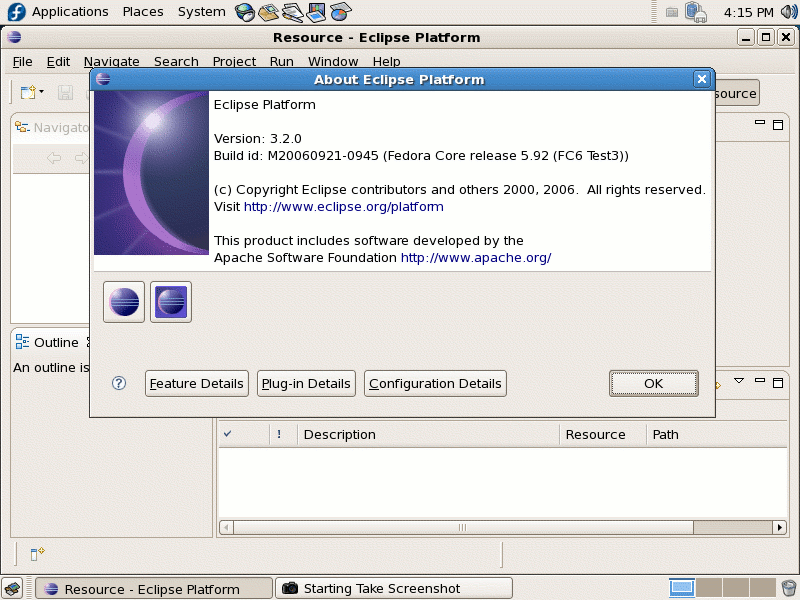
Eclipse on FC6


It's a good news for programmer on Linux. Eclipse 3.2.0 is bundled in FC6.


If you haven't select it when installation, you can add it from "Application->Add/Remove Software->Browse->Development" and check "Eclipse". It's much more easy then before.